Create Your First Organization
In this tutorial, you'll learn how to create your first organization after signing up for a Geocloud account.
What is an Organization?
An Organization is the top-level management unit in Geocloud that allows you to:
- Manage team members and permissions
- Create and share projects with your team
- Control data access by roles
- Track organization resource usage
- Set up common workflows
When Do You Need an Organization?
🏢 Team Collaboration
- Working with 2+ people
- Need to share projects and data
- Require different access permissions
📊 Professional Project Management
- Managing multiple concurrent projects
- Need progress tracking and reporting
- Quality control requirements
🔒 Security and Compliance
- Sensitive data handling
- Audit trail requirements
- Industry regulation compliance
Organization Creation Process
Step 1: Login to System
After successful account registration, login to Geocloud:
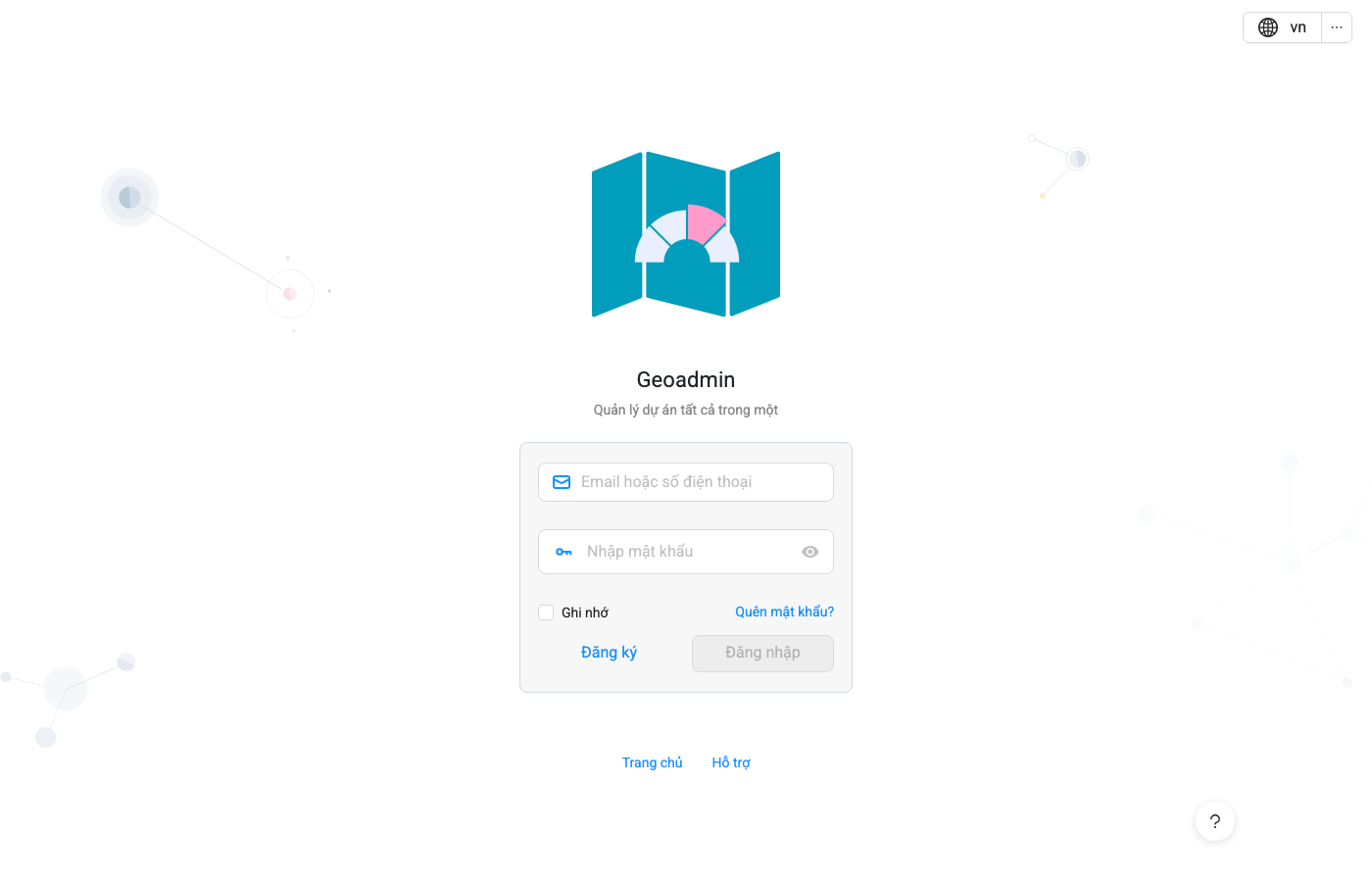
Login interface with Geocloud logo and information form
Step 2: Access Organization Creation
From the main Dashboard, you can:
- Click "Organization" in the left sidebar
- Or find the "Create Organization" button on the main page
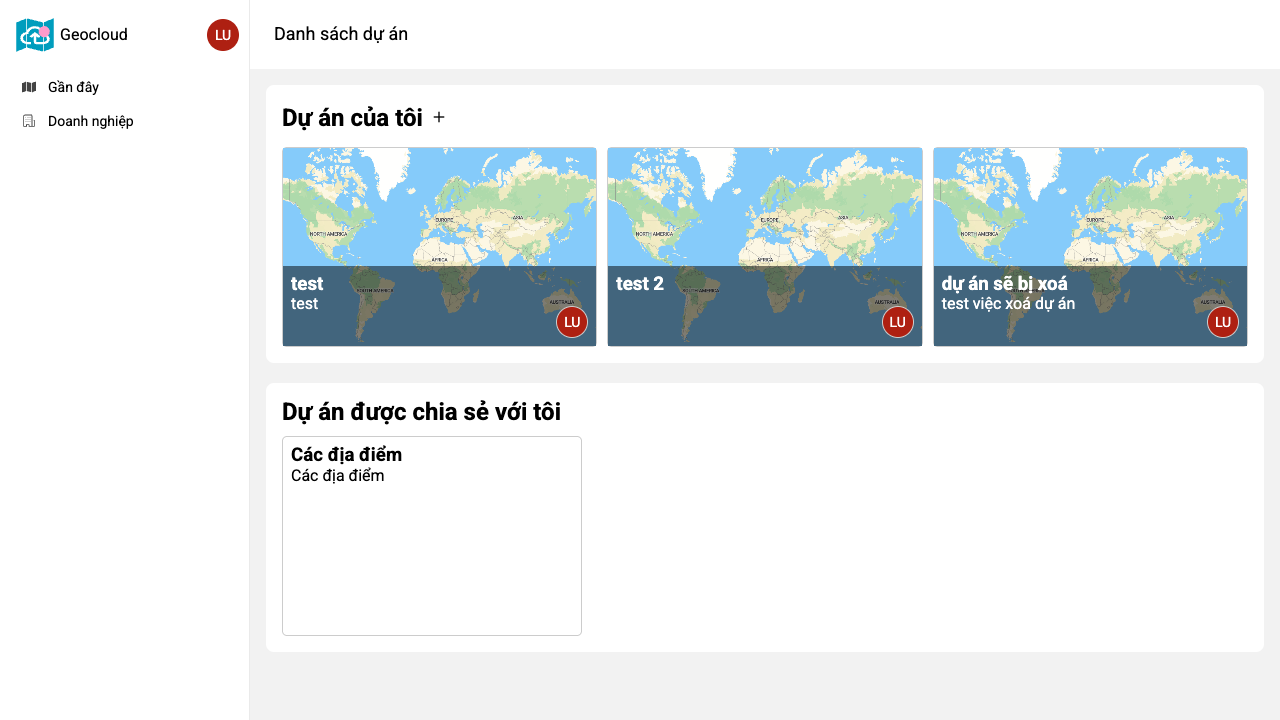
Dashboard after successful login
Step 3: Fill Organization Information
When the organization creation dialog appears, fill in the following information:
New organization creation dialog with required information fields
Basic Information
Organization Name (required)
- Display name for the organization
- Example: "ABC Company Ltd", "Department of Natural Resources"
Organization Code (required)
- Unique system identifier
- Only letters, numbers, and underscores
- Example: "abc_company", "dnr_hanoi"
Organization Description
- Information about business domain
- Geocloud usage objectives
- Optional but recommended
Organization Classification
Organization Type:
- Enterprise: Private companies, businesses
- Government: Ministries, departments, agencies, government bodies
- Non-Profit: NGOs, associations, research institutes
- Education: Universities, research institutions
Scale:
- Small (< 10 people)
- Medium (10-50 people)
- Large (> 50 people)
Step 4: Initial Setup
Geographic Settings
Primary Operating Region:
- Select main province/city
- Can select multiple regions
- Affects default map view
Preferred Coordinate System:
- VN-2000: For Vietnam data
- WGS84: For international data
- Can be changed later
Data Policies
Default Security Level:
- Public: Anyone can view
- Organization: Organization members only
- Private: Creator only
Data Retention Period:
- Auto-delete old data
- From 1 month to permanent
- Applied to temporary data
After Creating Organization
Next Steps
-
Invite First Members
- Add colleagues to organization
- Assign appropriate permissions
-
Create First Project
- Choose COLLECT project type
- Basic setup
-
Upload Sample Data
- Experiment with small datasets
- Get familiar with interface
Important Tips
🎯 Plan from the Start
- Choose clear, memorable organization name
- Keep organization code short and meaningful
- Select settings that fit your workflow
👥 Member Management
- Invite members gradually
- Don't give too many Admin permissions
- Regularly review member list
🔒 Security First
- Choose appropriate security level
- Enable 2FA for Admins
- Set up backup policies
📊 Usage Monitoring
- Check storage quota regularly
- Monitor unusual activities
- Upgrade plan when needed
Troubleshooting
Cannot Create Organization
Common Causes:
- Email account not verified
- Organization code already exists
- Missing required information
Solutions:
- Check email and click verification link
- Try a different organization code
- Ensure all required fields are filled
Organization Not Appearing
Check:
- Refresh the web page
- Logout and login again
- Contact support if issue persists
Change Organization Information
- Go to Settings > Organization Info
- Only Owner can edit
- Some information cannot be changed after creation
Next Steps
After successfully creating your organization, you can continue with:
Having trouble creating organization? See Common Error Solutions for detailed guidance.
Need more help? Contact support team: support@tlgeo.net 📧